n8n YouTube Transcript Workflow: RSS to AI Summary
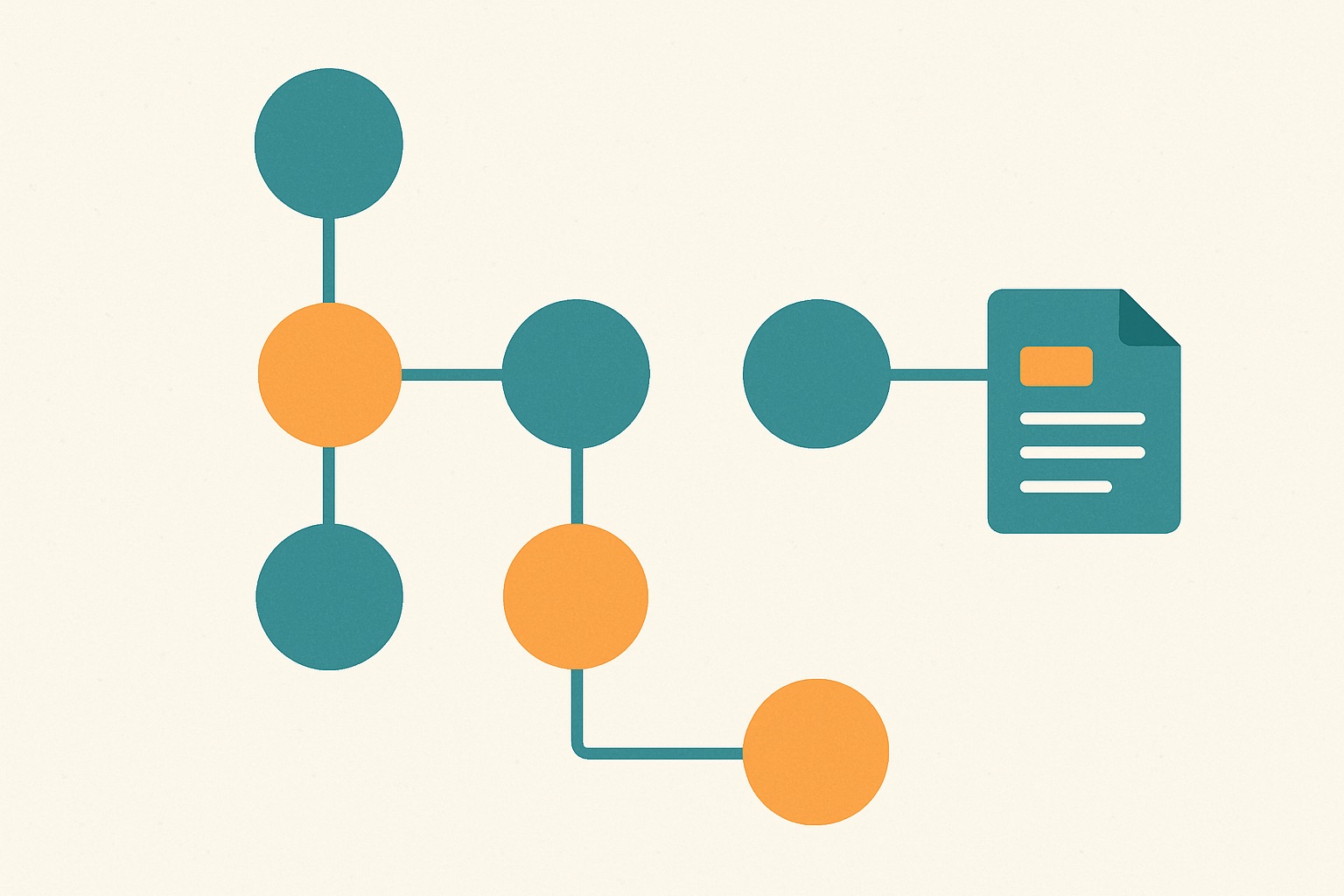
If you want an n8n YouTube transcript workflow that runs itself, here it is: four nodes that watch a channel, pull the transcript of every new video, summarize it with an LLM, and post the result to Slack. No YouTube Data API project, no OAuth screens, no scraping.
The trick that makes this clean is one most people don't know: every YouTube channel already has an RSS feed. n8n has an RSS trigger. The rest is a single HTTP call.
The workflow at a glance
- RSS Feed Trigger — fires when the channel publishes a video
- HTTP Request — fetches the transcript from youtube2text.org
- OpenAI (or any LLM node) — turns the transcript into a summary
- Slack (or Notion, or email) — delivers it
Node 1: RSS Feed Trigger
Add the RSS Feed Trigger node and give it this feed URL:
https://www.youtube.com/feeds/videos.xml?channel_id=CHANNEL_ID
To find a channel's ID, open any of its videos, view the page source, and search for channel_id — or grab it from the channel URL if it's the /channel/UC... form. The feed returns the latest uploads; the trigger node handles polling and deduplication, so each video comes through exactly once. Each item includes a link field with the full video URL, which is exactly what the next node needs.
Node 2: HTTP Request
This is the whole integration. Add an HTTP Request node with:
- Method: GET
- URL:
https://youtube2text.org/api/transcribe - Query parameters:
url={{ $json.link }},maxChars=20000 - Headers:
x-api-key=yt_YOUR_KEY
No key yet? Fetch the free shared one — no account needed:
curl -s https://youtube2text.org/api/demo-key
That returns {"success": true, "apiKey": "yt_..."}. It's limited to 5 videos per month per IP, which is fine for testing the workflow but not for following an active channel.
The API accepts any YouTube URL form (watch?v=, youtu.be, even a bare 11-character video id), so the RSS link works as-is. I set maxChars to 20000 here because the transcript is heading into an LLM next and you're paying for those tokens; the default and maximum is 150000.
The response lands as structured JSON:
{"result": {"videoId": "...", "title": "...", "pubDate": "...",
            "content": "transcript text ...", "contentSize": 12345, "truncated": false}}
Node 3: Summarize with an LLM
Add your LLM node of choice and reference the transcript with an expression like {{ $json.result.content }}. A prompt that has worked well for me:
> Summarize this video transcript in 5 bullet points, then list any tools, links, or numbers mentioned. Title: {{ $json.result.title }}
Keep the title in the prompt — auto-captions occasionally garble product names, and the title gives the model something to anchor on.
Node 4: Deliver it
Add a Slack node posting to your channel, with the video title, the summary, and the original link. Swap in a Notion node if you'd rather build a searchable archive — I wrote up that variant in the Notion guide.
The error you should actually handle
Not every video has captions. Live streams right after airing, some music videos, and channels that disable captions will return:
{"error": {"code": "TRANSCRIPT_UNAVAILABLE", "message": "...", "status": 404}}
In the HTTP Request node, enable the option to continue on failure (or catch it with an error branch) so one caption-less video doesn't halt the workflow. The other code worth a branch is RATE_LIMIT_EXCEEDED (429) — the response includes retryAfterSeconds, so a Wait node plus a retry loop handles it if you're processing a backlog.
Keys and quotas
For anything beyond a test run, sign in with Google at youtube2text.org/app/keys and create your own key — no phone number, no card. The free tier covers 5 videos a month; paid plans run from $5.99 for 50 videos to $19.99 for unlimited, which comfortably covers even a multi-channel setup.
If your team lives in Make or Zapier instead of n8n, the same architecture translates directly — see the Make version and the Zapier version. But if you're choosing fresh: n8n's free self-hosted tier makes it the cheapest way to run this loop unlimited.